 Nightstand
Sleep on it.
Wake up smarter.
Smarter alarms and an always-on display that knows when you wake. Your iPhone becomes the bedside clock it should have been.
Rootless jailbreaks, iOS 15 to 26. Alarms stay the system's own.
Everything the Clock app can't do.
Two tools for the night in one: alarms with the options you always wanted, and a calm clock that stays on beside your bed.
Skip what you don't need
Skip the next alarm, chosen dates, or your country's public holidays. Repeating alarms carry on the day after.
Snooze your way
Any snooze length, shorter each time if you like, and a limit on how many. Smart Snooze trims each one as you go.
A gentler start
Fade in from silence or your own volume, vibrate first, and let the screen brighten like a sunrise before the alarm.
Prove you're up
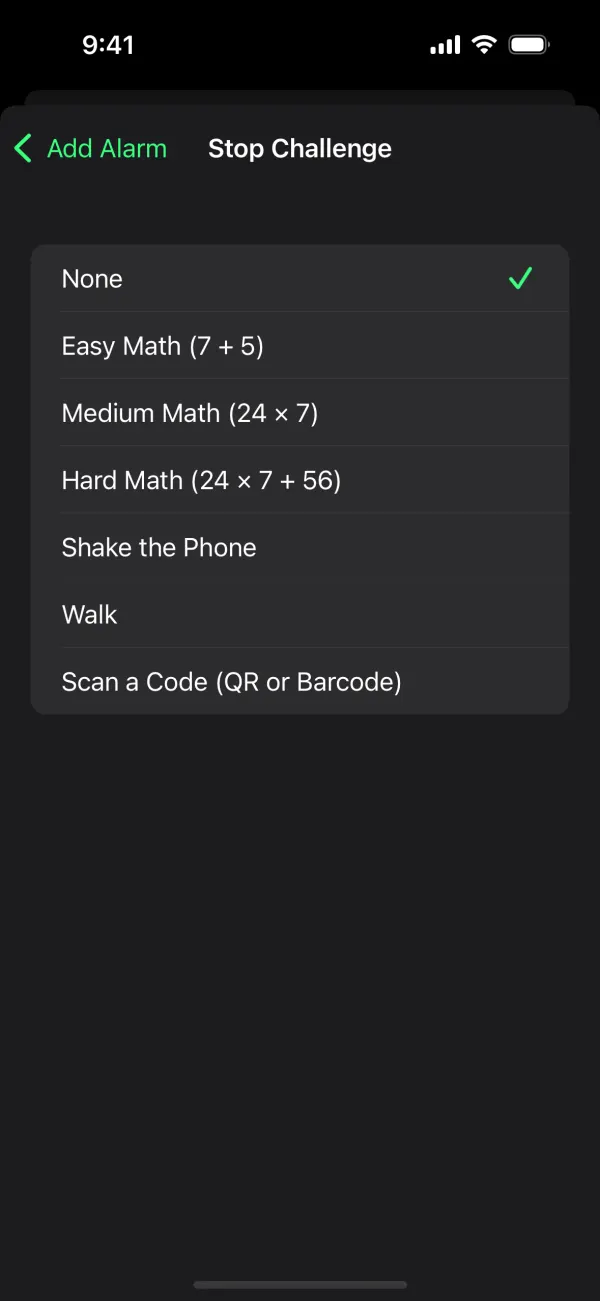
Stop takes a sum, a shake, a short walk, or scanning a code somewhere else in your home. A wake-up check asks again later.
An always-on display
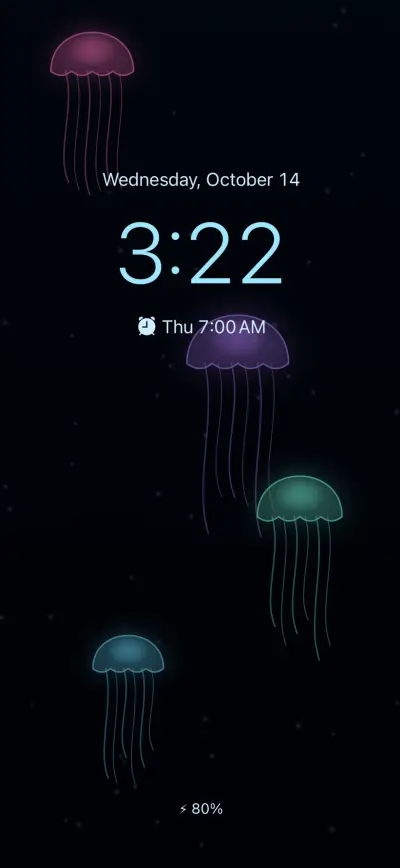
When the locked phone would go dark, it stays on: black, dim, with the time, the date and your next alarm. On any iPhone.
Screensavers
Eleven animated scenes, from Jellyfish to Fireplace Embers, painted wallpapers, or your own photo, video or gallery.
Knows when you sleep
Off at night until your alarm is near, face down, in a pocket or below a battery level. Red at night when the room is dark.
Earlier for weather
When rain or snow is forecast for the morning, the alarm rings a little earlier, so the slow commute starts on time.
Widgets, naps, bedtime
A Next Alarm widget for the home and lock screens, one-tap naps, and a reminder when it's time to sleep.
Always on. Never in the way.
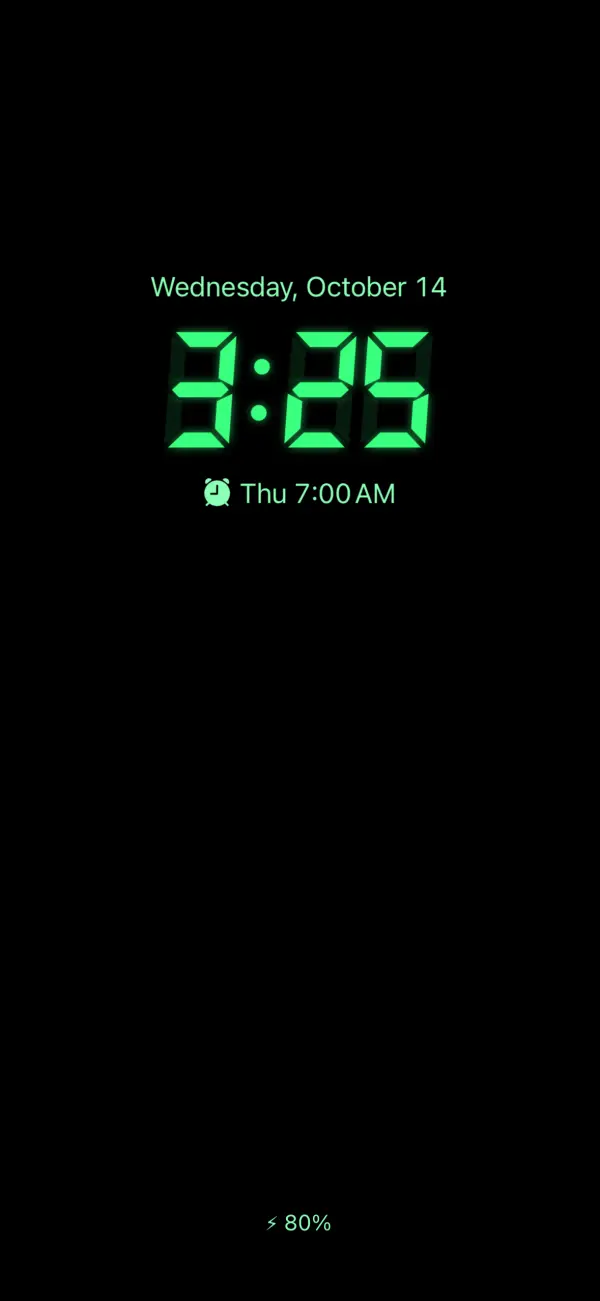
Nightstand keeps the lock screen awake, nearly black and as dim as the panel allows, redrawn once a minute. A glance tells you the time and how long until your alarm.
- Your next alarm with a countdown, and "skipping" when it will
- Notifications as app icons or dots, what's playing with its artwork
- Live Activities, a running timer, the weather, your next event
- Dark face down, in a pocket and at night, back before your alarm
- Burn-in protection that moves everything a little each minute
- Gestures: tap to wake, swipe for the flashlight, double tap to sleep
Eleven scenes. All moving.
Drawn live by the system's own animation engine, so they move smoothly while sipping power. Each can be dimmed under the time, and tinted red at night.

Arrange it. Own it.
Customize Look opens the display full screen, as it will be at night. Drag anything where you want it, pinch to size it, turn it with two fingers, and tap it for its options.
- Six clock faces: digital, analog, flip, stacked, segment and in words
- Colors and gradients, by line or for everything, or following the battery
- Every system font in every weight, plus your own .ttf and .otf files
- A layout for landscape, a different look while charging
- Saved Looks to swipe between, and to share as a file
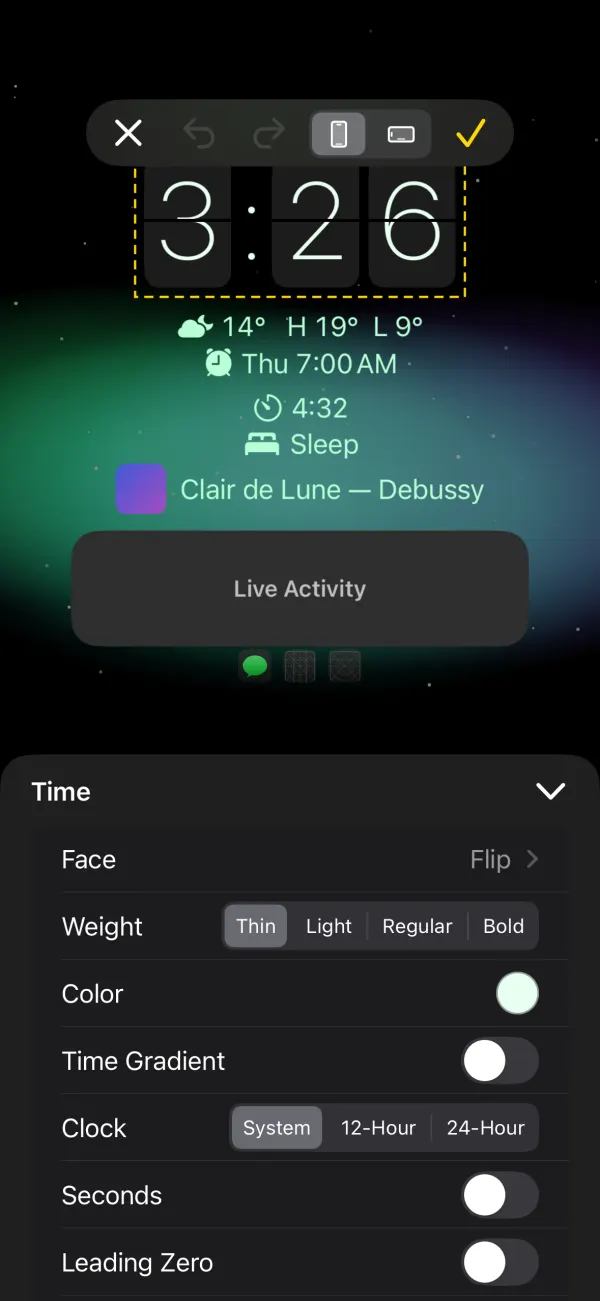

Your time, right now, the six ways Nightstand can draw it.
Your alarms, still the system's.
Nightstand's own app sets the iPhone's real alarms. They ring exactly as before, through Silent mode and Focus, show in the Clock app, and keep working if you ever remove Nightstand.
- A glance at each alarm says what it will do: skips, fade, challenge
- Snooze, stopping and skipping options for every alarm
- Groups, to switch Work or Weekend alarms at once
- Your Health sleep schedule's wake-up alarm gets them too
- Holidays for your country, kept up to date


Hard to ignore. Easy to stop.
The alarm screen grows into two big areas, Snooze and Stop, in your colors, so a sleepy hand can't miss. For timers too.
- Big Snooze and Stop, sized and placed where you want them
- Smart Snooze: each snooze a little shorter than the last
- Stop Challenge: easy, medium or hard math, shake, walk, scan a code
- Ring For: stops or snoozes by itself after a set time
- Flash the screen while it rings

Set it once. Sleep well.
Everything lives in Nightstand's own app on your home screen, and in Settings too.
Set your alarms
Add or change alarms in Nightstand's app, with the options you want for each. They're the iPhone's own, so the Clock app sees them as well.
Pick a look
Choose a screensaver, a clock face and colors, or arrange the display yourself on the full-screen canvas.
Put it down
Lock the phone on your nightstand. It stays on, dim and quiet, goes dark when it should, and wakes you the way you chose.
Built to be kind to your battery and your screen. The display is mostly black, redrawn once a minute, at the lowest brightness your panel holds, and goes dark whenever it can't be seen. Burn-in protection moves it a few points every minute.
Questions, answered.
What does Nightstand need?
A jailbroken iPhone on a rootless jailbreak, such as Dopamine or palera1n, on iOS 15 to 26. Nothing else to install.
Will my alarms still work if I remove it?
Yes. Nightstand sets the iPhone's own alarms, so they ring natively and stay in the Clock app. Only Nightstand's extras, such as skips and challenges, go away with it.
Does the always-on display drain the battery?
It keeps the screen on, so it uses some. It's built to use as little as it can: a mostly black frame, redrawn once a minute, at the lowest brightness, and dark face down, in a pocket, at night or below a battery level you choose. It can switch on Low Power Mode while it shows, or show only while charging.
What about burn-in?
Burn-in protection moves everything a few points each minute, and the display goes dark whenever it can't be seen. Dimmer in the Dark lowers it further in a dark room.
Can I still use StandBy?
On iOS 17 and later you choose: let Nightstand's display stay on when the phone is on its side and charging, or give way to StandBy.
Does it change the Clock app?
Only a small banner that opens Nightstand, and a line under each alarm with its Nightstand settings. Both can be turned off. How Clock edits alarms doesn't change.
Is my data sent anywhere?
Your alarms and settings stay on your phone. If you turn on the weather, the place you chose is sent to Open-Meteo for its forecast; for holidays, only your country's code goes to Nager.Date.
Good night. Good morning.
Coming soon to Havoc. Questions, ideas or a bug to report? Write to us.